Security and accessDevice security and access control

Control who can access each screen and what they can do.

Manage the security of supported devices, assign permissions by screen or by site with your corporate directory or with local users, and review the action history from a single platform.

Example · permissions by site
PersonNorthSouthCentral
it.centralITEditEditEdit
maria.opsSouth operationsNo accessEditNo access
reception.northReceptionEditNo accessNo access
auditAuditReadReadRead

01Device security

Locks and automatic credential renewal.

A screen in a corridor is a device on your network within anyone's reach. On LG WebOS Signage professional displays, Plyb TV locks the remote and physical keys, USB ports, menus, Wi-Fi settings and screen sharing, and keeps firmware and trusted certificates up to date.

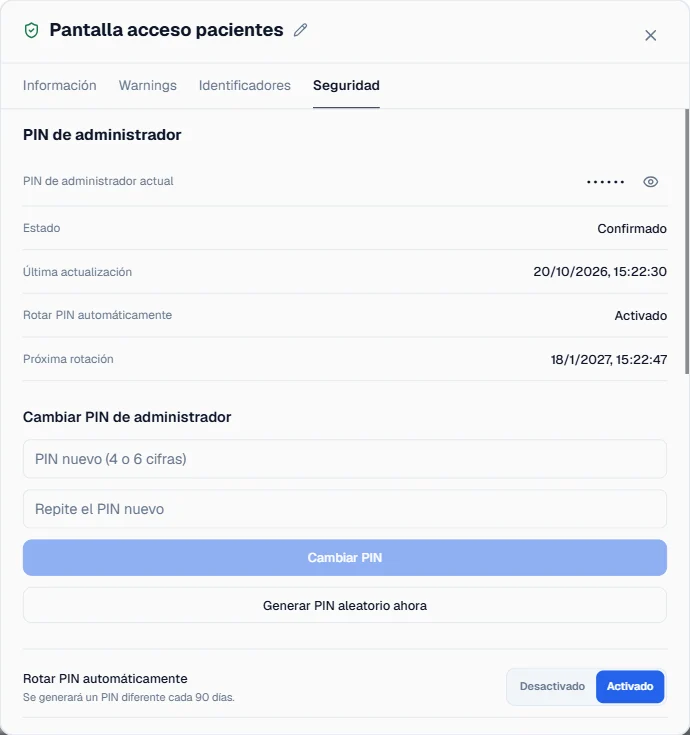
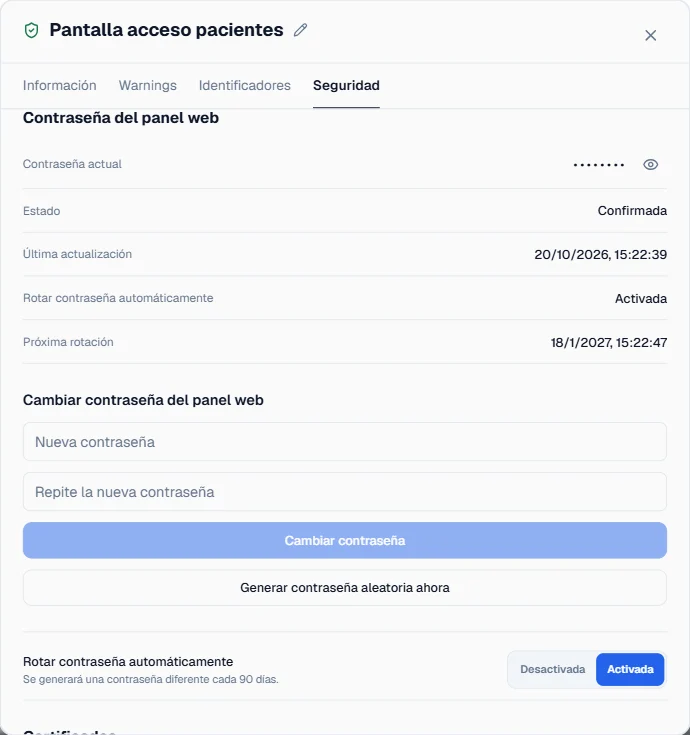
The admin PIN and web panel password of every screen are also changed from the dashboard. If your organisation has security requirements for its devices, Plyb TV renews them automatically at the interval you set, on models that support it. Every time someone views one of those credentials, it is logged.

See the features of each model

Admin PIN of the Patient entrance screen in Plyb TV: confirmed, with automatic rotation every 90 days and the next rotation scheduled
Patient entrance · Admin PIN
Web panel password of the Patient entrance screen in Plyb TV: confirmed, with automatic rotation every 90 days
Patient entrance · Web panel password

02Identity

Corporate authentication or local users.

You choose one of the two modes at installation. With LDAP, people sign in only with directory accounts; with local users, only with the ones created in the platform. They can't be combined today.

Option A · LDAP directory

With the usual credentials

Everyone signs in with their corporate username and password, and their profile is assigned from their directory group. Anyone removed from the directory can no longer sign in, and an administrator can deactivate their account from the dashboard.
Option B · Local users

No directory required

The platform's own users, created and managed from the dashboard. For organisations without a corporate directory, or that prefer to keep Plyb TV separate.

03Permissions

Permissions tailored to each user, group and site.

Five predefined profiles (Administrator, Operator, Content manager, Network technician and Auditor) plus custom roles with the permissions you need. On top of that, every screen, group, schedule or template can be shared with a specific person, with edit or read-only access.

That way everyone sees and controls only what concerns them: one screen, one site's group or the whole network. Sharing an entire group is as easy as sharing a single screen.

Share · South site group

maria.ops@organisation.comedit
audit@organisation.comread only

04History

Action history and traceability.

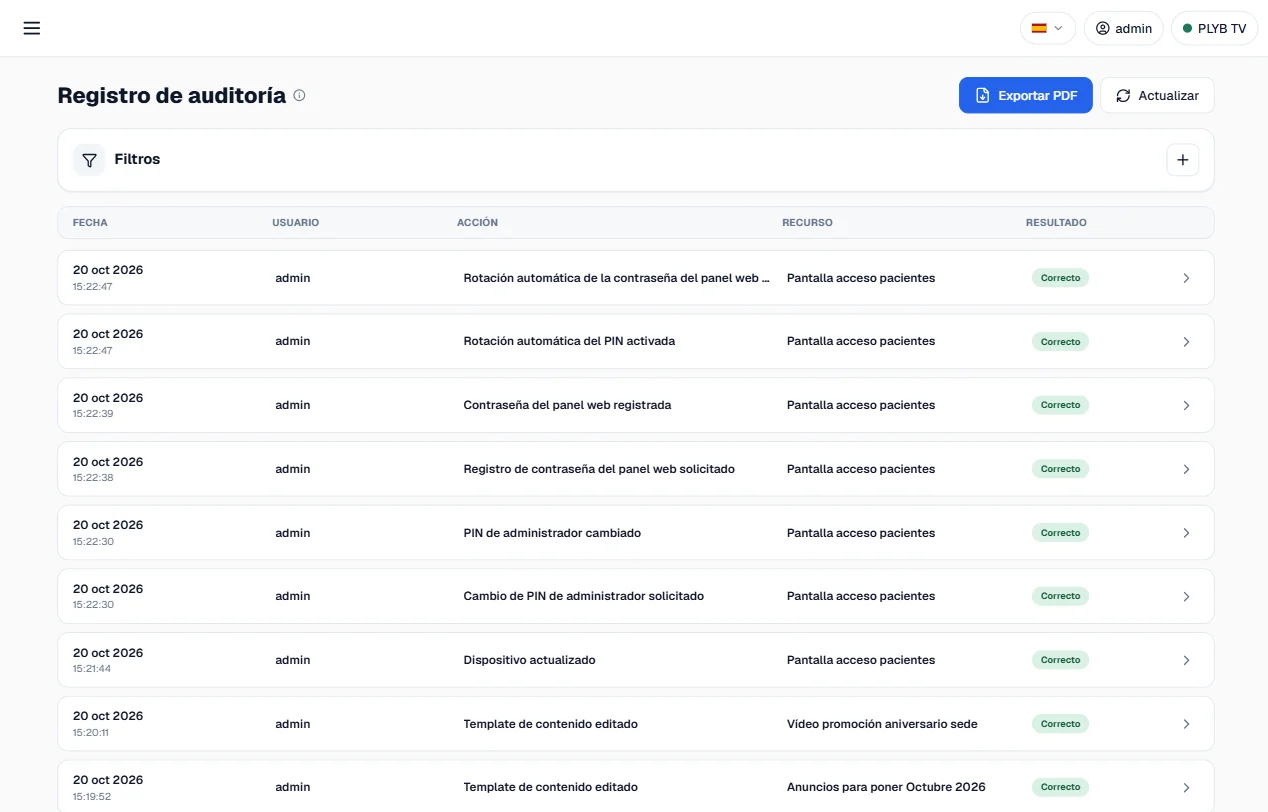
Relevant actions are recorded with who performed them, when and with what result: successful, partial or failed. The history can be consulted from the dashboard and exported to PDF.

Where it stops: it is a searchable, exportable action history, not a digitally signed audit or storage certified as tamper-proof. If your organisation needs that specific guarantee, tell us in the demo.

Plyb TV audit log with the Export PDF button: automatic rotations, PIN changes and web panel password changes, all successful
Plyb TV · Audit log

Do you have security requirements to meet?

Request a demo