Plyb TVCentralised screen management · Private beta
Your entire screen network. One control centre.
Manage, monitor, protect and schedule your screens from a single platform. See what is happening on every device, automate everyday tasks and publish content across all your sites without travelling. All of it installed on your organisation's own servers.
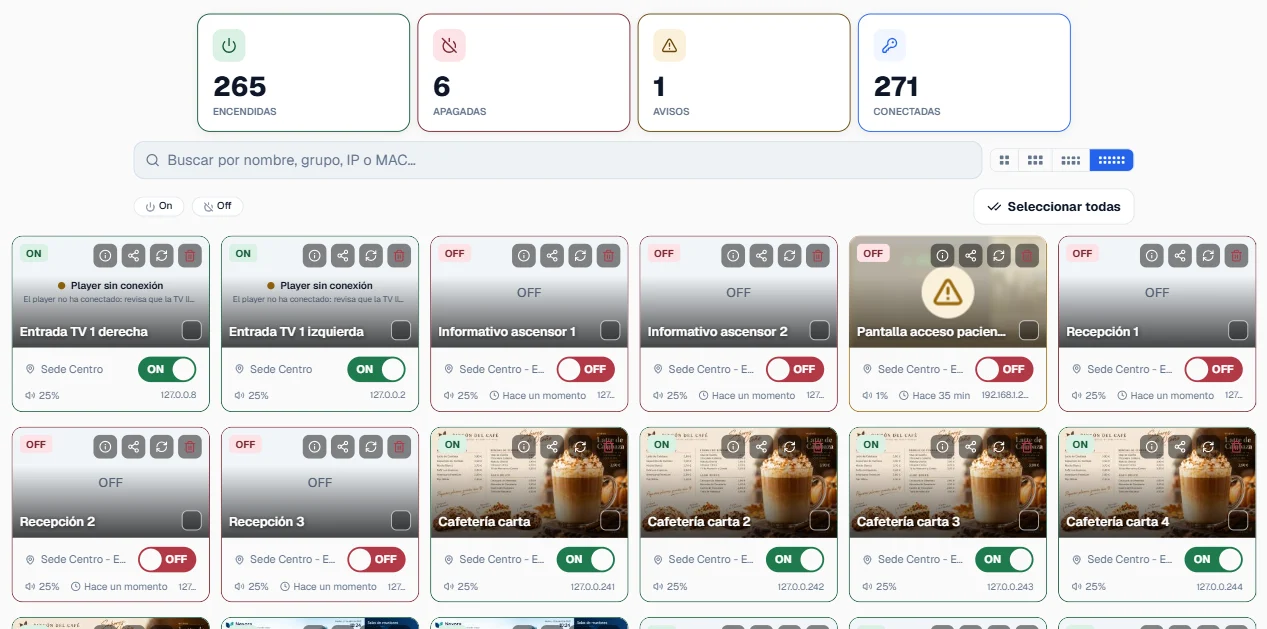
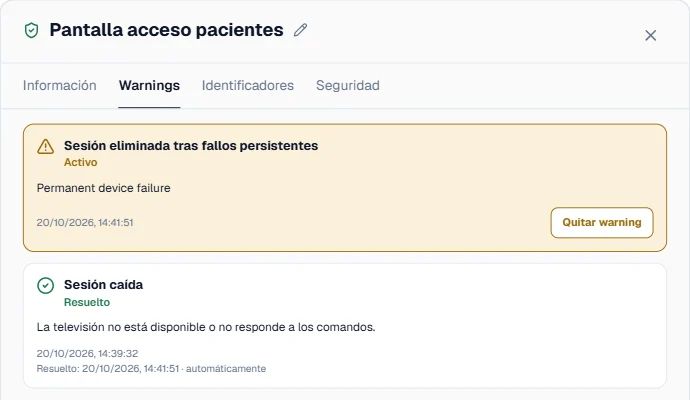
14 of 15 screens on. Patient entrance, Central site is not responding.
No more calling each site to ask whether a screen is on. No more travelling to change what it shows. And no more screens left on all weekend because nobody remembered to switch them off.
- Hospitals
- Airports
- Care homes
- Public administration
- Large corporations
01Monitoring and alerts
Know what is happening on every screen.
Check the status of every device from a single dashboard: on, off or flagged with an alert. The information updates itself, with no need to reload the page.
When a screen needs attention, for instance because a command keeps failing or a scheduled power-on didn't run, it is flagged along with its details: where it is, which group it belongs to and when it was last seen.
02Bulk commands
One command. One answer from every screen.
Switch on, switch off, set the volume or change the content of an entire group of screens in one go.
The result comes back screen by screen, not as a generic “sent”, so an exception doesn't get lost among the ones that did respond. Try it with the three in this room.
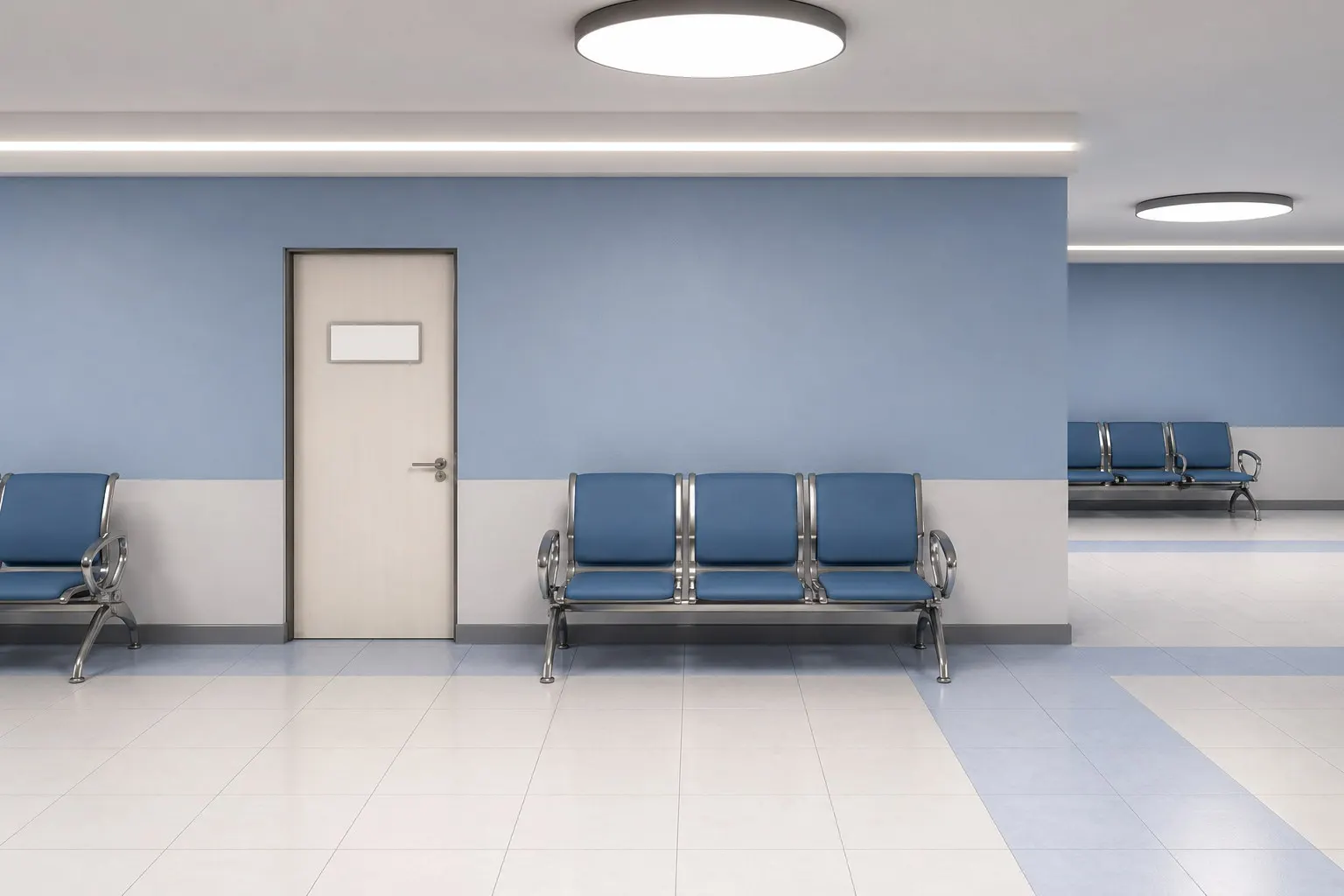
 No content configured
 Connecting…No content configuredConnecting…No content configuredConnecting…
3 of 3 screens onAll of them responded
03Screen security
Screens protected against tampering. And credentials that renew themselves.
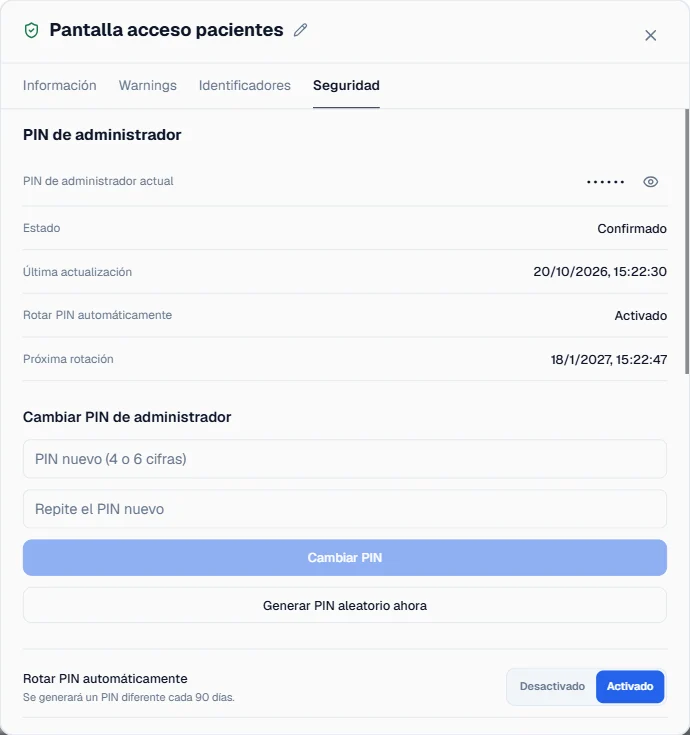
On LG WebOS Signage professional displays, Plyb TV locks the remote and physical keys, USB ports, menus, Wi-Fi settings and screen sharing. It also updates firmware, manages trusted certificates and changes the admin PIN and web panel password of every screen.
If your organisation has security requirements for its devices, that PIN and password renew automatically at the interval you set, on supported models.
 No content configured
04Digital signage
Publish content to all your sites from one place.
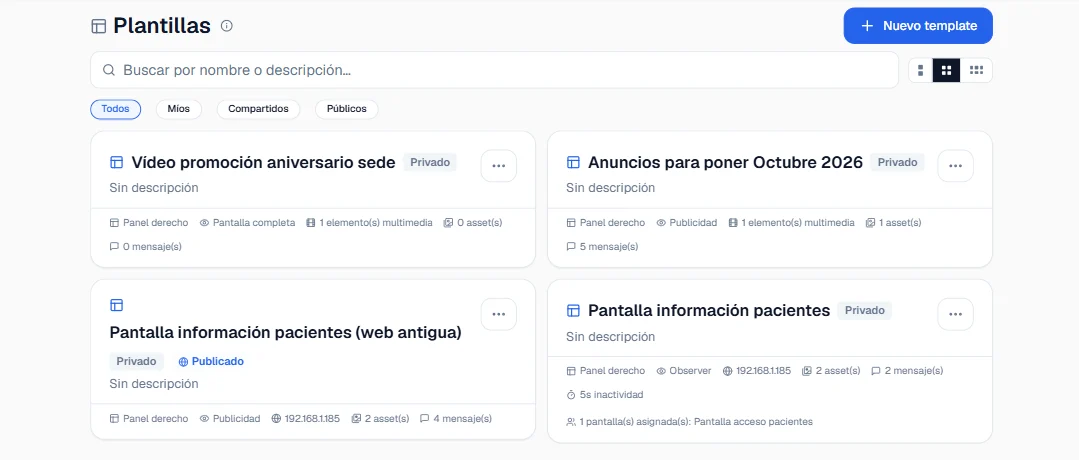
Build a template with images, video, a web page, a carousel or a text ticker, choose how it is displayed and publish it to one screen, a group or all of them at once. The change applies instantly, with no restarts and no site visits.
Image · GIF · Video · Web · Carousel · Text ticker
05Scheduling
Automate the tasks you repeat every day.
Set when your screens switch on, switch off or change content, and on which days of the week. A schedule applies to one screen or a whole group, and runs without anyone having to remember.
- 07:30Power on14 screens
- 12:00Switch to “Today's menu”template
- 16:00Switch to “Notices”template
- 21:30Power off14 screens
06Per-site permissions and log
Each team, with access only to its own screens. And every change, with who made it and how it went.
Share with each person only the group of screens that applies to them, with edit or read-only access. Actions are logged with who performed them, when and with what result, and the history can be exported to PDF.
| Time | Who | Action | On what | Result |
|---|---|---|---|---|
| 09:12 | maria.ops | Schedule edited | Cafeteria | Success |
| 09:15 | maria.ops | Group shared, edit access | South site | Success |
| 09:20 | audit | History exported to PDF | Read only | Success |
| 09:31 | system | Scheduled power-on | 15 screens | 14 of 15 |
Private betaA demo built on your real case
How many screens do you have?
Tell us how many screens and sites you have, and which models they are. We'll prepare a demo around your case and tell you clearly what you can manage today and what you can't.